How to Automate TLS-ALPN-01 Validation
Prove domain control inside the TLS handshake itself — no files, no DNS, just TLS. This guide covers TLS-ALPN-01 validation: how it works, when to use it, and step-by-step implementation for Caddy, Traefik, lego, and acme.sh.
Watch: TLS-ALPN-01 Automation Explained
Not sure if TLS-ALPN-01 automation should be your first priority? The PKI Priority Planner analyzes your environment and tells you what to focus on first.
Assess Your Priorities📍 Part of the DCV Automation Series
This guide covers TLS-ALPN-01 specifically. Not sure which method you need?
→ Start with Which DCV Method Should You Automate?
→ See also: DNS-01 Automation | HTTP-01 Automation
Your firewall team blocked port 80. Your DNS provider doesn't have an API. But port 443 is wide open because you're already serving HTTPS traffic.
TLS-ALPN-01 was built for exactly this scenario. Instead of placing files on a web server or creating DNS records, it proves domain control inside the TLS handshake itself — no HTTP requests, no DNS changes, no file placement.
Who this is for: SysAdmins and DevOps engineers running reverse proxies (Caddy, Traefik) or using standalone ACME clients (lego, acme.sh) who need certificate automation when port 80 is blocked and DNS API access isn't available.
What Is TLS-ALPN-01?
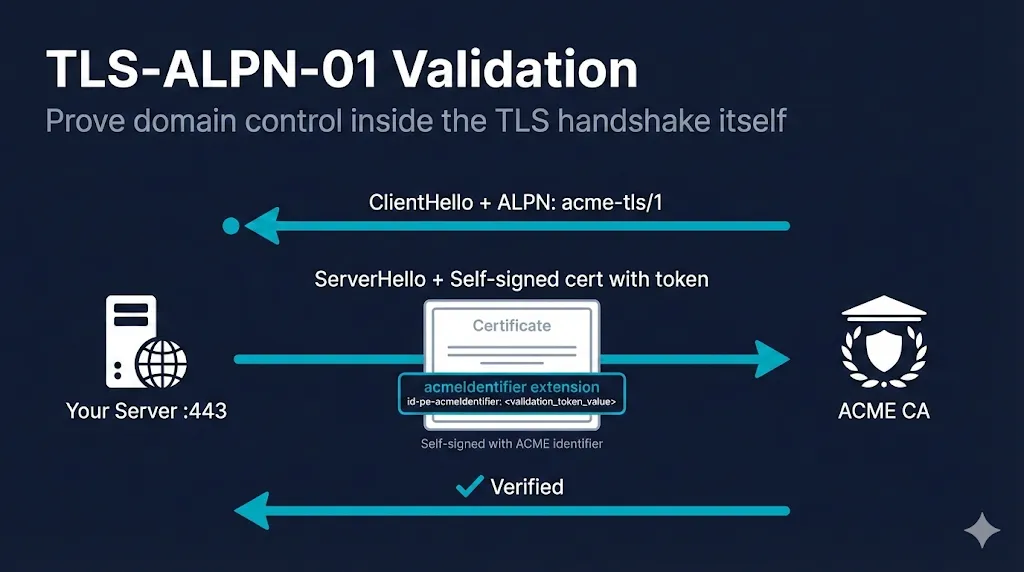
TLS-ALPN-01 proves you control a domain by presenting a specially crafted self-signed certificate during a TLS handshake on port 443 — no files, no DNS, just TLS.
How It Works (Step by Step)
Request certificate
ACME client asks for a cert for example.com
CA responds with challenge token
Let's Encrypt returns a random token
Client generates self-signed cert
Contains acmeIdentifier extension with SHA-256 of key authorization, SAN set to only the domain being validated
Configure ALPN responder
Server configured to respond to ALPN protocol "acme-tls/1"
Client tells CA: "ready"
Signals validation can begin
CA connects to port 443
CA connects with ALPN extension: "acme-tls/1"
Server responds with self-signed cert
NOT the production cert — only the validation cert
CA verifies token
Reads acmeIdentifier extension, confirms domain control
Certificate issued
Client installs real cert, removes self-signed cert, resumes normal TLS
Why This Is Clever
ALPN (Application-Layer Protocol Negotiation) is a TLS extension that lets the client and server agree on a protocol during the handshake. Normal HTTPS uses h2 or http/1.1. TLS-ALPN-01 uses acme-tls/1 — a protocol that exists only for ACME validation. No legitimate client will ever request it, so the validation certificate is never served to real users.
Want to see this flow interactively? Try the ACME Protocol Demo →
Self-Signed Certificate Requirements (RFC 8737)
- Must be self-signed — Not signed by any CA
- SAN must contain ONLY the domain being validated — No extra SANs, no IP addresses, no wildcards — even if the final certificate is a wildcard, the validation cert cannot have wildcards in SAN
- Must include the acmeIdentifier extension — OID 1.3.6.1.5.5.7.1.31 containing the SHA-256 hash of the key authorization string
- Extension must be marked critical — The acmeIdentifier extension MUST be critical
- No application data — After the TLS handshake completes, the connection closes immediately. The acme-tls/1 protocol carries zero application data.
Wait, a self-signed cert on production?
Don't panic. The self-signed certificate is only served to connections requesting the acme-tls/1 ALPN protocol. Your real users connecting with h2 or http/1.1 never see it. Most security scanners will never see this cert if they use normal ALPNs. The ACME client swaps it in, validation happens (usually in seconds), and it's removed. Most implementations handle this transparently.
When to Use TLS-ALPN-01
The Sweet Spot
TLS-ALPN-01 is ideal when:
- Port 80 is blocked — Corporate firewalls, ISP restrictions, security policy
- No DNS API access — Your DNS provider doesn't offer API control, or DNS changes require change tickets
- You're already terminating TLS — Load balancers, reverse proxies, CDN edges
- You want validation at the TLS layer — Clean separation of concerns, no web server file management
- You need instant validation — No DNS propagation delays
When NOT to Use TLS-ALPN-01
- Wildcard certificates — Not supported. Use DNS-01 instead.
- Port 443 not publicly reachable — The CA must connect to your port 443 from the internet.
- Behind a CDN that doesn't pass ALPN — If your CDN terminates TLS before traffic reaches your origin, it may strip the acme-tls/1 ALPN protocol. Example: Cloudflare in full-proxy mode terminates TLS at the edge.
- Server/LB doesn't support custom ALPN — Your TLS termination point must serve different certificates based on the negotiated ALPN protocol.
- Multiple servers behind the same IP — All servers must be able to respond to the challenge.
- certbot is your only option — certbot still does not support TLS-ALPN-01 as of early 2026 (check certbot docs for updates).
Quick Decision Check
| Question | If YES | If NO |
|---|---|---|
| Need wildcard certs? | ❌ Stop → DNS-01 | ✅ Continue |
| Port 443 reachable from internet? | ✅ Continue | ❌ Stop → DNS-01 |
| TLS termination point supports ALPN? | ✅ TLS-ALPN-01 works | ❌ Stop → DNS-01 or HTTP-01 |
| Behind a CDN? | ⚠️ Verify ALPN passthrough | ✅ You're clear |
Tool Compatibility Matrix
| Tool | TLS-ALPN-01 | How | Notes |
|---|---|---|---|
| Caddy | ✅ Built-in (default) | Automatic | Uses TLS-ALPN-01 by default, falls back to HTTP-01 |
| Traefik | ✅ tlsChallenge | tlsChallenge: true | Native support in v2+ |
| lego | ✅ --tls flag | --tls | Standalone TLS server on port 443 |
| acme.sh | ✅ --alpn flag | --alpn | Standalone or with HAProxy integration |
| dehydrated | ✅ with hook | Hook script | Requires external ALPN responder |
| cert-manager | ✅ Supported | Solver config | Uses ingress-shim or solver pods |
| certbot | ❌ Not supported | — | Use HTTP-01, DNS-01, or a different client |
| HAProxy | 🔜 Planned | — | Use acme.sh integration for now |
| Nginx | ⚠️ Varies | External | Requires Lua module or external responder |
Implementation: Caddy
Caddy has first-class TLS-ALPN-01 support — it's the default challenge type. Just specify your domain and Caddy handles everything.
Minimal Caddyfile
This is all you need:
example.com {
    root * /var/www/html
    file_server
}
Caddy automatically obtains and renews certificates. TLS-ALPN-01 is tried first; if it fails, Caddy falls back to HTTP-01. If Caddy can't bind port 80 (blocked or another process), it will still succeed via TLS-ALPN-01 as long as 443 is reachable.
Explicit TLS-ALPN-01 Only
To force TLS-ALPN-01 and disable HTTP-01:
{
    acme_ca https://acme-v02.api.letsencrypt.org/directory
    # Disable HTTP challenge entirely
    http_port 0
}

example.com {
    tls {
        # TLS-ALPN-01 is used automatically when http_port is 0
    }
    root * /var/www/html
    file_server
}
Multi-Domain
example.com, www.example.com, api.example.com {
    root * /var/www/html
    file_server
}
Verify Certificate
# Check certificate
echo | openssl s_client -connect example.com:443 -servername example.com 2>/dev/null | openssl x509 -noout -dates -issuer

# Check Caddy logs for issuance
journalctl -u caddy | grep -i "certificate|acme"
Common Pitfalls
- Port conflict: Another process binding to port 443. Check with
ss -tlnp | grep 443 - Docker networking: Ensure port 443 is published (
-p 443:443) and the container can reach the internet - Test with staging first: Add
acme_ca https://acme-staging-v02.api.letsencrypt.org/directoryin a global block to avoid rate limits during experiments
Implementation: Traefik
Docker Compose with TLS Challenge
# docker-compose.yml
version: "3.8"
services:
  traefik:
    image: traefik:v3.0
    command:
      - "--providers.docker=true"
      - "--entrypoints.websecure.address=:443"
      - "--certificatesresolvers.myresolver.acme.tlschallenge=true"
      - "--certificatesresolvers.myresolver.acme.email=admin@example.com"
      - "--certificatesresolvers.myresolver.acme.storage=/letsencrypt/acme.json"
    ports:
      - "443:443"
    volumes:
      - "./letsencrypt:/letsencrypt"
      - "/var/run/docker.sock:/var/run/docker.sock:ro"

  whoami:
    image: traefik/whoami
    labels:
      - "traefik.enable=true"
      - "traefik.http.routers.whoami.rule=Host(`example.com`)"
      - "traefik.http.routers.whoami.entrypoints=websecure"
      - "traefik.http.routers.whoami.tls.certresolver=myresolver"
Static YAML Configuration
# traefik.yml
entryPoints:
  websecure:
    address: ":443"

certificatesResolvers:
  myresolver:
    acme:
      email: admin@example.com
      storage: /etc/traefik/acme.json
      tlsChallenge: {}  # TLS-ALPN-01

providers:
  file:
    filename: /etc/traefik/dynamic.yml
Verify Certificate
# Check Traefik dashboard for certificate status
curl -s http://localhost:8080/api/http/routers | jq '.[] | {name, tls}'

# Check certificate from outside
echo | openssl s_client -connect example.com:443 2>/dev/null | openssl x509 -noout -text | grep -A1 "Issuer"
Common Pitfalls
- ALPN negotiation failure: Ensure no other service (like nginx) is terminating TLS before Traefik. Verify ALPN with:
openssl s_client -connect example.com:443 -alpn 'acme-tls/1,h2' - mTLS conflict: Client certificate requirements can interfere with ACME validation
- Permissions: The acme.json file must be readable/writable (mode 600)
- Clustered setups: Persist
/letsencryptto durable storage (NFS, host mount, etc.) so all Traefik replicas share the same certificates
Implementation: lego
lego is a powerful standalone ACME client written in Go. It supports TLS-ALPN-01 via the --tls flag.
Basic Usage
# First run - register account and get certificate
lego --email admin@example.com --domains example.com --tls run

# Renew certificate
lego --email admin@example.com --domains example.com --tls renew
Important: lego's --tls flag starts a standalone TLS server on port 443. You must stop any existing web server first.
Multi-Domain Certificate
lego --email admin@example.com \
    --domains example.com \
    --domains www.example.com \
    --domains api.example.com \
    --tls run
Cron Automation
# /etc/cron.d/lego-renew
0 3 * * * root systemctl stop nginx && \
    /usr/local/bin/lego --email admin@example.com --domains example.com --tls renew --renew-hook="systemctl start nginx" || \
    systemctl start nginx
The --renew-hook runs only when a certificate is actually renewed. The trailing || systemctl start nginx ensures nginx restarts even if renewal fails.
Caution: This stop-the-world pattern is risky on single-node critical services. For zero-downtime renewals, consider HAProxy with acme.sh integration or a sidecar approach.
IPv6 Note: Ensure both A and AAAA DNS records point to the host running lego. If you have mismatched AAAA records, temporarily remove them during testing — the CA may connect via IPv6 to an unreachable address.
Certificate Location
By default, lego stores certificates in .lego/certificates/:
.lego/
├── accounts/
│   └── acme-v02.api.letsencrypt.org/
│       └── admin@example.com/
└── certificates/
    ├── example.com.crt      # Full chain
    ├── example.com.key      # Private key
    └── example.com.issuer.crt
Implementation: acme.sh
acme.sh is a popular shell-based ACME client with TLS-ALPN-01 support via the --alpn flag.
Standalone Mode
# Install acme.sh
curl https://get.acme.sh | sh -s email=admin@example.com

# Issue certificate using TLS-ALPN-01
acme.sh --issue --alpn -d example.com

# Install certificate to a directory
acme.sh --install-cert -d example.com \
    --key-file /etc/ssl/private/example.com.key \
    --fullchain-file /etc/ssl/certs/example.com.pem \
    --reloadcmd "systemctl reload nginx"
Note: Like lego, standalone mode requires port 443 to be free. Stop your web server before running.
HAProxy Integration
For HAProxy environments, acme.sh can integrate without downtime:
# Issue certificate with HAProxy deploy hook
acme.sh --issue --alpn -d example.com \
    --deploy --deploy-hook haproxy

# Or manually deploy to HAProxy
acme.sh --install-cert -d example.com \
    --key-file /etc/haproxy/certs/example.com.key \
    --fullchain-file /etc/haproxy/certs/example.com.pem \
    --ca-file /etc/haproxy/certs/ca.pem \
    --reloadcmd "systemctl reload haproxy"
Multi-Domain
acme.sh --issue --alpn \
    -d example.com \
    -d www.example.com \
    -d api.example.com
Preferred pattern for zero-downtime: Use the HAProxy deploy hook instead of standalone mode. HAProxy integration pushes new certificates via the Runtime API without reloading the service — unlike lego's stop-start approach.
Cron tip: acme.sh installs its own cron job by default. You usually don't need to add your own — verify with acme.sh --cron --home ~/.acme.sh in your logs.
Troubleshooting
Cannot negotiate ALPN protocol
Symptom: Error: "no ALPN negotiated" or "ALPN protocol not supported"
Causes:
- Server not configured to respond to acme-tls/1 ALPN
- CDN or load balancer stripping ALPN extension
- Firewall blocking TLS negotiation
Fix: Verify your TLS termination point supports ALPN.
openssl s_client -connect example.com:443 -alpn "acme-tls/1"Connection Refused on Port 443
Symptom: CA cannot connect to validation endpoint
Causes:
- Firewall blocking inbound port 443
- No service listening on port 443
- DNS not pointing to correct IP
Fix: Check firewall rules, verify DNS, ensure service is running: ss -tlnp | grep 443
Extra SANs Issue (Historical)
Symptom: Validation fails despite correct setup
Causes:
- Let's Encrypt had a bug in January 2022 where additional SANs in the validation cert were not properly rejected
Fix: This was fixed server-side. Ensure your ACME client is up to date and generates validation certs with only the single domain being validated.
RFC 8737 requires the validation certificate SAN to contain ONLY the domain being validated.
Unauthorized Error
Symptom: CA rejects the challenge with "unauthorized"
Causes:
- acmeIdentifier extension missing or incorrect
- Wrong key authorization hash
- Certificate served to wrong ALPN protocol
Fix: Check ACME client logs for exact error. Ensure you're using a supported and up-to-date client.
Security Scanner False Positives
Symptom: Scanner reports "self-signed certificate detected"
Causes:
- Scanner connecting with acme-tls/1 ALPN and seeing the validation cert
Fix: Configure scanner to use standard ALPN protocols only (h2, http/1.1). In most scanners, set the protocol to HTTPS with HTTP/1.1 or HTTP/2 only. The self-signed cert is never served to normal HTTPS traffic.
Comparison: TLS-ALPN-01 vs HTTP-01 vs DNS-01
| Aspect | TLS-ALPN-01 | HTTP-01 | DNS-01 |
|---|---|---|---|
| Port Required | 443 (HTTPS) | 80 (HTTP) | None (DNS only) |
| Infrastructure Access | TLS termination point | Web server file system | DNS zone/API |
| Wildcard Support | ❌ No | ❌ No | ✅ Yes |
| Propagation Delay | None (instant) | None (instant) | Variable (TTL) |
| CDN Compatible | ⚠️ Varies | ⚠️ Varies | ✅ Yes |
| Certbot Support | ❌ No | ✅ Yes | ✅ Yes |
| RFC | RFC 8737 | RFC 8555 | RFC 8555 |
| Primary Failure Mode | ALPN stripped or 443 unreachable | Port 80 blocked or HTTP routing misconfig | DNS propagation or misconfigured TXT record |
Renewal Automation
Zero-Downtime Tools (Built-in Renewal)
Caddy and Traefik handle renewal automatically. No cron jobs needed — they monitor certificate expiry and renew in the background without interrupting traffic.
# Caddy - nothing to configure, automatic renewal is built-in
# Check certificate status
caddy list-certificates

# Traefik - automatic if certificatesResolvers is configured
# Check acme.json for expiry dates
cat /letsencrypt/acme.json | jq '.myresolver.Certificates[].domain'
Standalone Tools (Require Cron)
For lego and acme.sh, you need to schedule renewal:
# lego cron (requires stopping web server)
0 3 * * * systemctl stop nginx && lego --email admin@example.com --domains example.com --tls renew && systemctl start nginx

# acme.sh cron (installs its own cron by default)
# Manual renewal
acme.sh --renew -d example.com

# Force renewal (ignores 30-day window)
acme.sh --renew -d example.com --force
Monitoring Commands
# Check certificate expiry
echo | openssl s_client -connect example.com:443 -servername example.com 2>/dev/null | openssl x509 -noout -dates

# Check days until expiry
echo | openssl s_client -connect example.com:443 2>/dev/null | openssl x509 -noout -checkend 2592000
# Exit code 0 = valid for 30+ days, 1 = expiring within 30 days

# List all lego certificates
ls -la ~/.lego/certificates/

# List all acme.sh certificates
acme.sh --list
Related Resources
Which DCV Method to Automate?
Decision framework for HTTP-01, DNS-01, and TLS-ALPN-01
Automating DNS-01 with DNS APIs
For wildcards and internal servers
Automating HTTP-01 on Nginx, Apache, IIS
The simplest path when port 80 is available
ACME Protocol Demo
Interactive demo of the ACME challenge-response flow
SSL Checker Tool
Verify your certificate installation
RFC 8737: TLS-ALPN-01 Specification
The official IETF specification