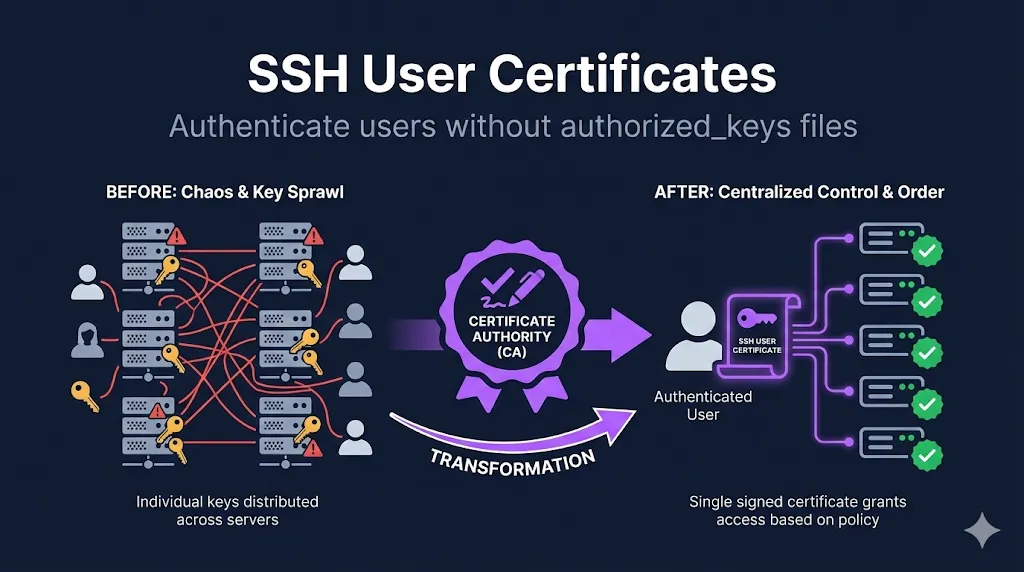
- • What they do: Replace per-server authorized_keys with CA-signed, time-limited credentials
- • Key benefit: Onboard in minutes, offboard instantly—no server-by-server cleanup
- • Best practice: Short-lived certs (4-24h) eliminate revocation headaches entirely
1. The Problem User Certificates Solve
Managing SSH access at scale with traditional keys is painful:
Add a new developer? Touch 500 servers. Remove someone who left? Good luck finding all their keys.
Facebook reportedly had millions of SSH keys before switching to certificates. Every key is a potential access point that needs tracking.
Traditional SSH keys live forever until manually removed. That contractor from 2019? Their key might still work.
Someone's laptop stolen? Now you're racing to remove their key from every server before an attacker uses it.
"Who has access to production?" becomes an archaeology project through hundreds of authorized_keys files.
The irony: If you're managing authorized_keys files with Ansible, Puppet, or Chef, you've essentially built a certificate system with extra steps—and without the security benefits.
2. How User Certificates Work
The flow is straightforward:
┌─────────────┐     ┌─────────────┐     ┌─────────────┐
│    User     │     │     CA      │     │   Server    │
│  (has key)  │────▶│  (signs)    │     │ (trusts CA) │
└─────────────┘     └─────────────┘     └─────────────┘
       │                   │                   │
       │  1. Send pub key  │                   │
       │──────────────────▶│                   │
       │                   │                   │
       │  2. Get cert back │                   │
       │◀──────────────────│                   │
       │                   │                   │
       │  3. Connect with cert                 │
       │──────────────────────────────────────▶│
       │                   │                   │
       │                   │  4. Verify cert   │
       │                   │     against CA    │
What's happening:
- User generates a normal key pair (nothing special required)
- CA signs the public key → creates a certificate
- Server trusts the CA, not individual keys
- Certificate contains: identity, allowed usernames (principals), validity period, and restrictions
Same concept as TLS: This is the same principle as TLS certificates—a trusted authority vouches for identity. The format is different (OpenSSH, not X.509), but the PKI fundamentals are identical.
Defense in depth: Authentication still requires the user's private key—the certificate alone isn't enough. An attacker needs both a compromised private key and a valid certificate to gain access.
→ See our SSH Certificate Anatomy demo to explore certificate fields interactively.
3. Anatomy of a User Certificate
User certificates contain specific fields that control access:
| Field | Purpose | Example |
|---|---|---|
| Key ID | Identifier for logs/audit | patrick@example.com-20250114 |
| Principals | Usernames this cert can authenticate as | patrick, admin, deploy |
| Valid After | Certificate start time | 2025-01-14T00:00:00 |
| Valid Before | Certificate expiration | 2025-01-15T00:00:00 |
| Critical Options | Restrictions (source-address, force-command) | source-address="10.0.0.0/8" |
| Extensions | Permissions granted | permit-pty, permit-port-forwarding |
The principals field is particularly important—it determines which usernames the certificate holder can log in as.
4. Signing a User Certificate
Here's how to sign a user's public key:
ssh-keygen -s /path/to/user_ca \
  -I "patrick@example.com-20250114" \
  -n patrick,admin \
  -V +1d \
  ~/.ssh/id_ed25519.pub
Flag breakdown:
| Flag | Meaning | Best Practice |
|---|---|---|
| -s | CA private key to sign with | Keep this secure (offline or HSM) |
| -I | Key ID—appears in auth logs | Include username + date for audit trail |
| -n | Principals—usernames allowed | Least privilege: only what's needed |
| -V | Validity period | Short as practical: +1d, +8h, +1w |
Output: Creates ~/.ssh/id_ed25519-cert.pub alongside the original key.
Verify the certificate:
ssh-keygen -L -f ~/.ssh/id_ed25519-cert.pub
This displays all certificate details including principals, validity, and extensions.
5. Server Configuration
Servers need two things to trust user certificates:
# /etc/ssh/sshd_config

# Trust certificates signed by this CA
TrustedUserCAKeys /etc/ssh/user_ca.pub

# Map principals to local users (optional but recommended)
AuthorizedPrincipalsFile /etc/ssh/auth_principals/%u
Restart sshd after changes:
systemctl restart sshd
Important: Only the CA's .pub file goes on servers. The private CA key never leaves the signing machine.
6. Principals: The Access Control Layer
Principals are where SSH certificates become powerful.
- • Certificate principal must exactly match local username
- • User with principal
patrickcan only log in aspatrick
- • Map role-based principals to local accounts
- • Multiple principals can access the same account
Create /etc/ssh/auth_principals/root:
admin
emergency-access
Now anyone with the admin or emergency-access principal in their certificate can SSH as root.
Example directory structure:
/etc/ssh/auth_principals/
├── root          # Contains: admin, emergency-access
├── deploy        # Contains: deploy, ci-cd
├── patrick       # Contains: patrick, developer
└── monitoring    # Contains: monitoring, observability
This enables role-based access control:
- Issue certificates with role principals (
admin,developer,deploy) - Servers define which roles can access which accounts
- No authorized_keys changes needed when people join or leave
Security note: This is powerful—audit your principals files carefully. Anyone with a certificate containing admin can access any server where admin is an authorized principal for root.
7. Certificate Extensions and Restrictions
Fine-grained control over what certificate holders can do:
Extensions (permissions granted):
| Extension | What it allows |
|---|---|
| permit-pty | Interactive shell |
| permit-port-forwarding | SSH tunnels (-L, -R, -D) |
| permit-agent-forwarding | Forward SSH agent |
| permit-X11-forwarding | X11 display forwarding |
| permit-user-rc | Run ~/.ssh/rc on login |
Critical Options (restrictions):
| Option | Effect |
|---|---|
| source-address="10.0.0.0/8" | Only allow connections from this CIDR |
| force-command="/usr/bin/backup.sh" | Only this command can run |
Example: Locked-down CI/CD certificate
ssh-keygen -s /path/to/user_ca \
  -I "github-actions-deploy" \
  -n deploy \
  -V +1h \
  -O source-address="192.30.252.0/22" \
  -O force-command="/opt/deploy/run.sh" \
  -O no-port-forwarding \
  -O no-pty \
  deploy_key.pub
This certificate:
- Is only valid for 1 hour
- Can ONLY connect from GitHub's IP range
- Can ONLY run the deploy script
- Cannot get a shell or create tunnels
Even if this key is compromised, the blast radius is minimal. The attacker can only run one specific command, from one IP range, for one hour.
Best practice: Default to denying all extensions, then opt-in per certificate profile. Start with -O clear to remove all default extensions, then explicitly add only what's needed.
8. Short-Lived Certificates: The Best Practice
Why 1-24 hour validity is recommended:
Stolen certificate is useless tomorrow. No need to track and revoke.
With traditional keys, revocation means touching every server. With short-lived certs, just wait for expiration.
Integrates naturally with identity providers. User authenticates to IdP → gets fresh certificate.
Each certificate signing event is logged. You know exactly who got access and when.
Compliance bonus: Short-lived user certificates plus CA signing logs satisfy "individual accountability" and "timely revocation" controls (SOC 2, PCI DSS) more cleanly than static keys—each access event is traced to a specific user at a specific time.
The tradeoff: Users need to get new certificates regularly.
Solutions:
- Integrate with SSO - Sign certificate at login
- Use a signing service - HashiCorp Vault, step-ca, Venafi
- Wrapper scripts - Auto-refresh before expiration
Example with HashiCorp Vault:
# User authenticates to Vault, gets signed certificate
vault write -field=signed_key ssh/sign/developer \
  public_key=@~/.ssh/id_ed25519.pub > ~/.ssh/id_ed25519-cert.pub

# Certificate valid for configured TTL (e.g., 8 hours)
# Transparent to user - just works until end of workday
9. Migration Strategy
Moving from authorized_keys to certificates doesn't have to be big-bang.
- • Deploy CA public key to servers (
TrustedUserCAKeys) - • Keep existing authorized_keys working
- • Issue certificates to pilot users
- • Both authentication methods work simultaneously
- • Log which authentication method is used for each connection
- • Gradually move more users to certificates
- • Identify edge cases (service accounts, legacy systems)
- • Build out signing automation
- • Set
AuthorizedKeysFile nonein sshd_config - • Only certificate authentication works
- • Keep break-glass authorized_keys for root on jump hosts if needed
Typical timeline: 3-6 months for full migration at scale, depending on organization size and change management requirements.
10. Troubleshooting
Common issues and their solutions:
| Symptom | Likely Cause | Fix |
|---|---|---|
| Permission denied (publickey) | Certificate not being sent | Ensure cert filename matches key |
| Certificate invalid: expired | Past validity period | Get new certificate signed |
| name is not a listed principal | Username not in -n list | Add principal or configure AuthorizedPrincipalsFile |
| Auth works on some servers | TrustedUserCAKeys not configured | Check sshd_config on failing servers |
| Intermittent failures | Clock skew | Sync NTP on both ends |
| Certificate not used | Wrong key offered first | Specify key with -i ~/.ssh/id_ed25519 |
Debug command:
ssh -vvv user@server 2>&1 | grep -i cert
Look for:
Offering public key: ... ED25519-CERT- Client is trying certificateServer accepts key: ... ED25519-CERT- Success!Certificate invalid:- Check the specific error message
FAQ
Can I use SSH certificates with GitHub/GitLab?
Not directly—they use their own key infrastructure. SSH certificates are for servers you control. GitHub and GitLab require you to upload public keys to your account.
Do I need to regenerate my SSH keys?
No. Certificates sign your existing public key. Your private key never changes and isn't modified in any way.
What happens when a certificate expires mid-session?
Existing sessions continue uninterrupted. Only new connection attempts require a valid certificate. You won't get kicked out of an active session.
Can I use the same certificate on multiple machines?
Yes, if you copy both the private key and the certificate file. But consider per-device certificates for better audit trails—you'll know exactly which device was used.
How is this different from LDAP/AD SSH authentication?
LDAP/AD requires network connectivity to the directory service during login. Certificates are validated locally using the CA public key—works even if the network to your directory is down.
What about service accounts and automation?
Service accounts work great with certificates. Issue longer-lived certificates (weeks/months) with tight restrictions: locked to specific source IPs, forced commands, no PTY. Better than permanent keys with no restrictions.
Related Guides
- What are SSH Certificates?Start here if new to the concept
- SSH Certificate Authority SetupCreate your own CA with native OpenSSH
- SSH Host CertificatesEliminate fingerprint prompts
- Venafi SSH ProtectEnterprise automation at scale
- SSH Certificate AnatomyInteractive visual breakdown
- mTLS / Mutual TLSSimilar concept for HTTPS
- Certificate LifecycleSame PKI principles apply
- What is Venafi?Certificate management at scale
- Agent vs Agentless CLMDeployment models