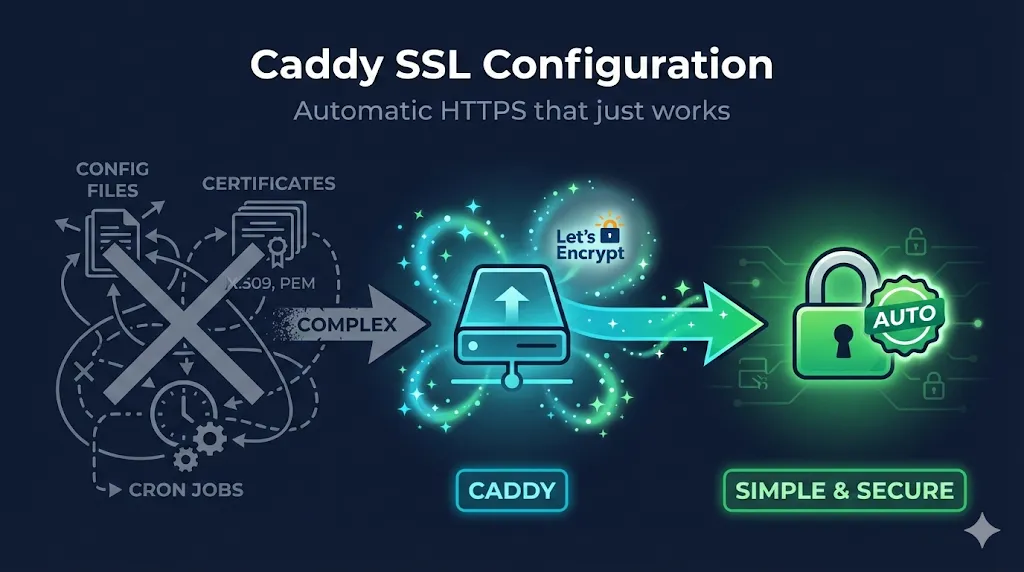
TL;DR
Caddy automatically obtains and renews Let's Encrypt certificates for any domain you serve. Just point DNS at your server, open ports 80 and 443, and Caddy handles the rest. For manual certificates, use the tls directive with file paths. Most issues come from: DNS not pointed, ports blocked, or file permissions.
Works out of the box for public DNS names. See Local Development for localhost and .local domains. Most examples use HTTP-01 challenge; see ACME Configuration for DNS-01 and wildcards.
1. Automatic HTTPS (The Magic)
The Simplest Possible Config
example.com {
    respond "Hello, secure world!"
}That's it. Caddy will:
- Obtain a certificate from Let's Encrypt
- Redirect HTTP → HTTPS
- Renew before expiration
- Use modern TLS defaults
What Caddy Does Automatically
| Feature | Default Behavior |
|---|---|
| Certificate | Let's Encrypt production |
| TLS Version | TLS 1.2 minimum |
| Cipher Suites | Modern, secure defaults |
| HTTP → HTTPS | Automatic redirect |
| OCSP Stapling | Enabled |
| Renewal | 30 days before expiry |
Requirements for Automatic HTTPS
- Domain's DNS A/AAAA record points to your server
- Ports 80 AND 443 accessible from internet
- Not using localhost, 127.0.0.1, or .local domains
- Caddy has permission to bind to ports (or use setcap/systemd)
2. Reverse Proxy with Automatic TLS
Most common use case—Caddy as TLS terminator:
app.example.com {
    reverse_proxy localhost:3000
}

api.example.com {
    reverse_proxy localhost:8080
}Both domains get automatic certificates.
With Health Checks and Load Balancing
app.example.com {
    reverse_proxy localhost:3000 localhost:3001 {
        lb_policy round_robin
        health_uri /health
        health_interval 30s
    }
}Preserving Client IP
app.example.com {
    reverse_proxy localhost:3000 {
        header_up X-Real-IP {remote_host}
        header_up X-Forwarded-For {remote_host}
        header_up X-Forwarded-Proto {scheme}
    }
}3. Manual Certificate Configuration
For enterprise PKI, internal CAs, or purchased certificates:
Basic Manual Certificate
example.com {
    tls /path/to/cert.pem /path/to/key.pem
    reverse_proxy localhost:3000
}With Certificate Chain (fullchain)
example.com {
    tls /path/to/fullchain.pem /path/to/key.pem
    reverse_proxy localhost:3000
}Caddy expects PEM format. The cert file can contain the full chain (leaf + intermediates).
Wildcard with Manual Cert
*.example.com {
    tls /path/to/wildcard.pem /path/to/wildcard.key

    @app host app.example.com
    handle @app {
        reverse_proxy localhost:3000
    }

    @api host api.example.com
    handle @api {
        reverse_proxy localhost:8080
    }
}Wildcard Warning: See Dangers of Wildcard Certificates for security considerations.
4. TLS Configuration Options
Customize TLS Settings
example.com {
    tls {
        protocols tls1.2 tls1.3
        ciphers TLS_ECDHE_ECDSA_WITH_AES_256_GCM_SHA384 TLS_ECDHE_RSA_WITH_AES_256_GCM_SHA384
        curves x25519 secp384r1 secp256r1
    }
    reverse_proxy localhost:3000
}TLS 1.3 Only (High Security)
example.com {
    tls {
        protocols tls1.3
    }
    reverse_proxy localhost:3000
}Warning: TLS 1.3-only may break older clients (Java 8, legacy middleware, some corporate proxies). Test thoroughly before enforcing. See our TLS Handshake Demo to troubleshoot connection issues.
Client Certificate Authentication (mTLS)
example.com {
    tls {
        client_auth {
            mode require_and_verify
            trusted_ca_cert_file /path/to/client-ca.pem
        }
    }
    reverse_proxy localhost:3000
}Trust bundle options: Use trusted_ca_cert_file for a single CA file, or trusted_ca_certs (plural) if you need to specify multiple CA certificates inline. Caddy stores its own CA data in /data/caddy/pki/.
Learn more: See our mTLS Deep Dive for client certificate authentication patterns.
5. ACME Configuration
Use Let's Encrypt Staging (For Testing)
{
    acme_ca https://acme-staging-v02.api.letsencrypt.org/directory
}

example.com {
    reverse_proxy localhost:3000
}DNS Challenge for Wildcards
{
    acme_dns cloudflare {env.CF_API_TOKEN}
}

*.example.com {
    reverse_proxy localhost:3000
}Note: The global acme_dns option applies to all sites unless overridden per-site. If you have mixed domains across different DNS providers, configure DNS challenges per-site block instead.
Specify Email for Let's Encrypt Notifications
{
    email admin@example.com
}

example.com {
    reverse_proxy localhost:3000
}Use ZeroSSL Instead of Let's Encrypt
{
    acme_ca https://acme.zerossl.com/v2/DV90
    acme_eab {
        key_id YOUR_KID
        mac_key YOUR_HMAC_KEY
    }
}6. Local Development
Self-Signed for Localhost
localhost {
    tls internal
    reverse_proxy localhost:3000
}Caddy generates a locally-trusted certificate. Run caddy trust once to add Caddy's CA to your system trust store.
Browser gotcha: Some browsers cache trust state aggressively. After running caddy trust, you may need to close all browser windows (not just tabs) or restart the browser for the trust to take effect.
Local with Custom Domain (edit /etc/hosts)
myapp.local {
    tls internal
    reverse_proxy localhost:3000
}Tip: Add 127.0.0.1 myapp.local to your /etc/hosts file.
7. Disabling or Restricting Automatic HTTPS
For internal-only services, testing, or when TLS is handled elsewhere (e.g., a load balancer), you may need to disable Caddy's automatic certificate management.
Disable Globally
{
    auto_https off
}

example.com {
    reverse_proxy localhost:3000
}This disables automatic HTTPS for all sites but still serves on both HTTP and HTTPS if you provide a certificate manually.
HTTP-Only Site Block
http://internal.example.com {
    reverse_proxy localhost:3000
}The explicit http:// prefix tells Caddy this site should only serve HTTP—no certificate obtained.
Disable Redirects Only
{
    auto_https disable_redirects
}

example.com {
    reverse_proxy localhost:3000
}Caddy still obtains certificates and serves HTTPS, but won't redirect HTTP → HTTPS. Useful when a frontend proxy handles redirects.
8. Docker Configuration
docker-compose.yml
version: "3.9"

services:
  caddy:
    image: caddy:2-alpine
    ports:
      - "80:80"
      - "443:443"
    volumes:
      - ./Caddyfile:/etc/caddy/Caddyfile
      - caddy_data:/data
      - caddy_config:/config
    restart: unless-stopped

  app:
    image: your-app:latest
    expose:
      - "3000"

volumes:
  caddy_data:    # Stores certificates - PERSIST THIS!
caddy_config:Caddyfile
app.example.com {
    reverse_proxy app:3000
}Critical — PERSIST THIS! The caddy_data volume stores certificates. Losing it means re-requesting from Let's Encrypt (rate limits apply).
9. Common Issues & Fixes
| Problem | Cause | Solution |
|---|---|---|
| "unable to obtain certificate" | DNS not pointed | Verify A record with dig example.com |
| "port 80 already in use" | Another service on 80 | Stop Apache/nginx or change ports |
| "permission denied" | Can't bind to 80/443 | Use setcap or run as root initially |
| "too many certificates" | Let's Encrypt rate limit | Wait a week or use staging CA |
| Certificate for wrong domain | Stale config | Delete /data/caddy/ and restart |
| "tls: private key does not match" | Mismatched key/cert files | Regenerate or match correct pair |
| HTTP-01 fails behind Cloudflare | Orange-cloud proxying blocks ACME | Set DNS record to "DNS only" (gray cloud) or use DNS challenge |
Check if DNS is Correct
# Should return your server's IP
dig +short example.com

# Compare to your server
curl ifconfig.me
Check if Ports are Open
# Test from another machine
nc -zv your-server-ip 80
nc -zv your-server-ip 443

# Check what's using ports locally
sudo lsof -i :80
sudo lsof -i :443
Enable Debug Logging
{
    debug
}

example.com {
    reverse_proxy localhost:3000
}Then: journalctl -u caddy -f
Still stuck? Use our SSL Checker Tool to verify your certificate is installed correctly, or try the Let's Encrypt Troubleshooting Demo for ACME-specific issues.
10. Caddy vs Other Web Servers
If you're choosing a web server primarily for HTTPS offload or TLS termination, here's how Caddy compares to the traditional options:
| Feature | Caddy | nginx | Apache |
|---|---|---|---|
| Auto HTTPS | ✅ Built-in | ❌ Manual | ❌ Manual |
| ACME client built-in | ✅ Native | ⚠️ Certbot | ⚠️ Certbot |
| mTLS support | ✅ Native | ✅ Config | ✅ Config |
| Config syntax | Simple | Complex | Complex |
| Zero-downtime reload | ✅ | ✅ | ✅ |
| HTTP/2 | ✅ Default | ✅ | ✅ |
| HTTP/3 (QUIC) | ✅ | ❌ | ❌ |
| Memory usage | Higher | Lower | Medium |
| Ecosystem | Growing | Massive | Massive |
When to use Caddy
- • You want TLS without thinking about it
- • Simple reverse proxy needs
- • Developer environments
- • Small to medium deployments
When nginx/Apache might be better
- • Extreme performance requirements
- • Complex rewrite rules
- • Existing infrastructure/expertise
- • Specific module requirements
11. File Paths & Commands
Default Paths (Linux with systemd)
| Item | Path |
|---|---|
| Caddyfile | /etc/caddy/Caddyfile |
| Certificates | /var/lib/caddy/.local/share/caddy/ |
| Logs | journalctl -u caddy |
Essential Commands
# Validate config
caddy validate --config /etc/caddy/Caddyfile

# Reload without downtime
caddy reload --config /etc/caddy/Caddyfile

# Format Caddyfile (fixes indentation)
caddy fmt --overwrite /etc/caddy/Caddyfile

# Test ACME without rate limits
caddy run --config /etc/caddy/Caddyfile --adapter caddyfile

# Trust local CA (for `tls internal`)
caddy trust

# View current config as JSON
caddy adapt --config /etc/caddy/Caddyfile
12. Frequently Asked Questions
Related Guides & Tools
nginx SSL Configuration
Complete TLS guide for nginx
Apache SSL Configuration
SSL/TLS setup for Apache
Traefik SSL Configuration
Cloud-native edge router TLS
SSL/TLS Checker Tool
Verify your certificate configuration
TLS Handshake Demo
Interactive TLS connection visualization
Let's Encrypt Troubleshooting
Diagnose ACME certificate issues
ZeroSSL Free Certificates
Configure Caddy to use ZeroSSL instead of Let's Encrypt via ACME