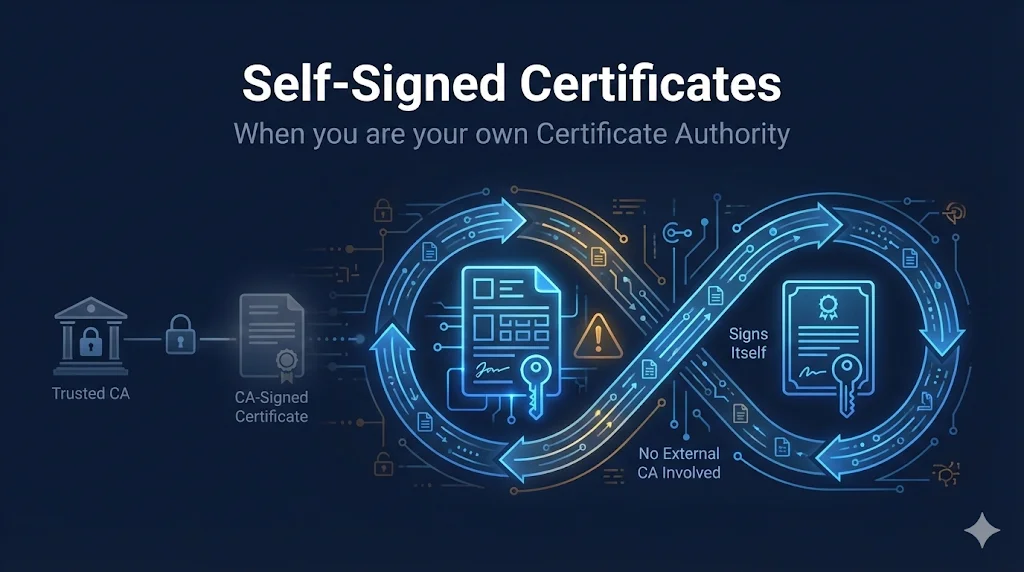
What is a Self-Signed Certificate?
A self-signed certificate is a certificate where the issuer and subject are the same entity. Instead of a trusted Certificate Authority (CA) vouching for your identity, you sign the certificate yourself.
Think of it like writing your own reference letter instead of getting one from your previous employer. The content might be accurate, but there's no third party confirming it.
Key Point: Self-signed certificates provide the same encryption strength as CA-signed certificates. The only difference is the trust model - who vouches for the certificate's authenticity.
Self-Signed vs CA-Signed Certificates
Trust Model Comparison
The fundamental difference is in the chain of trust:
CA-Signed
- • CA verifies your identity
- • CA signs with their private key
- • Browsers trust the CA
- • Therefore, browsers trust you
Self-Signed
- • You sign with your own key
- • No external validation
- • Browsers don't trust by default
- • Must manually add to trust store
When to Use Self-Signed Certificates
localhost, 127.0.0.1, dev servers
QA environments, staging servers
Isolated test networks
Understanding TLS/PKI
Devices never exposed to internet
Networks with no internet access
With manual trust distribution
When NOT to Use Self-Signed Certificates
Use Let's Encrypt - it's free!
Customers can't trust your cert
Payment processors require CA certs
Certificate pinning is a better option
Users will see scary warnings
Creating Self-Signed Certificates
Quick One-Liner (No SANs)
Fastest way to generate a self-signed cert:
openssl req -x509 -newkey rsa:2048 -keyout key.pem -out cert.pem -days 365 -nodes -subj "/CN=localhost"
With SANs (Recommended)
Modern browsers require Subject Alternative Names:
openssl req -x509 -newkey rsa:2048 -keyout key.pem -out cert.pem -days 365 -nodes \
  -subj "/CN=myapp.local" \
  -addext "subjectAltName=DNS:myapp.local,DNS:localhost,IP:127.0.0.1"
Generate Key First (Two-Step)
For more control over key generation:
# Generate private key
openssl genrsa -out key.pem 2048

# Generate self-signed certificate
openssl req -new -x509 -key key.pem -out cert.pem -days 365 \
  -subj "/CN=localhost" \
  -addext "subjectAltName=DNS:localhost,IP:127.0.0.1"
ECDSA (Modern, Smaller Keys)
Elliptic curve - same security, smaller keys:
openssl ecparam -genkey -name prime256v1 -out key.pem
openssl req -new -x509 -key key.pem -out cert.pem -days 365 \
  -subj "/CN=localhost" \
  -addext "subjectAltName=DNS:localhost,IP:127.0.0.1"
Command Flags Explained
-x509Output self-signed cert (not CSR)-newkeyGenerate new private key-nodesNo password on private key-daysCertificate validity period-subjSubject DN (avoid prompts)-addextAdd X.509 extensions (SANs)Adding to Trust Stores
To avoid browser warnings, add your self-signed certificate to your system's trust store:
macOS
sudo security add-trusted-cert -d -r trustRoot -k /Library/Keychains/System.keychain cert.pem
Or drag cert into Keychain Access → System → set to "Always Trust"
Windows
certutil -addstore -f "ROOT" cert.pem
Or: certmgr.msc → Trusted Root Certification Authorities → Import
Linux (Ubuntu/Debian)
sudo cp cert.pem /usr/local/share/ca-certificates/myapp.crt
sudo update-ca-certificates
Node.js
NODE_EXTRA_CA_CERTS=/path/to/cert.pem node app.js
Python requests
requests.get('https://localhost', verify='/path/to/cert.pem')Security Warning
Only add certificates to your trust store that you created yourself or received from a trusted source. Adding a malicious certificate allows attackers to intercept your encrypted traffic.
Self-Signed vs Let's Encrypt
| Aspect | Self-Signed | Let's Encrypt |
|---|---|---|
| Cost | Free | Free |
| Browser Trust | Manual setup | Automatic |
| Setup Time | Instant | Minutes |
| Works on localhost | Yes | No |
| Works offline | Yes | No |
| Renewal | Manual | Auto (90 days) |
| Public websites | Never | Yes |
| Domain required | No | Yes |
Bottom Line: Use Let's Encrypt for anything public-facing. Use self-signed only for local development and internal/isolated environments.
Understanding Browser Warnings
When you visit a site with a self-signed certificate, you'll see warnings like:
NET::ERR_CERT_AUTHORITY_INVALID
This is Expected!
The browser is correctly warning you that no trusted CA vouched for this certificate. For your own development servers, you can safely proceed or add the cert to your trust store.
Related Resources
CA Hierarchy
Understand how certificate authorities work and why self-signed differs.
Certificate Anatomy
Explore the X.509 structure of self-signed certificates.
OpenSSL Key Generation
Generate keys for your self-signed certificates with OpenSSL.
Chain Builder Guide
Build proper certificate chains when creating your own CA.
Root Stores
Learn how trust stores work and how to add self-signed certs.
Frequently Asked Questions
Is self-signed encryption less secure?
No. The encryption strength is identical to CA-signed certificates. The difference is only in who vouches for the certificate's authenticity, not the encryption itself.
Can I use self-signed for production?
Only for internal tools where you can distribute the certificate to all users manually. Never use self-signed for public-facing services - users will see scary warnings and many browsers won't even allow bypass.
Why does Chrome reject my localhost cert?
Modern Chrome requires Subject Alternative Names (SANs). Use the -addext "subjectAltName=..." flag when generating your cert.
How long should my self-signed cert be valid?
For development: 1-2 years is common. There's no external authority limiting validity, but longer durations mean more time to forget about expiration. Some browsers now warn about certs valid for more than 398 days.