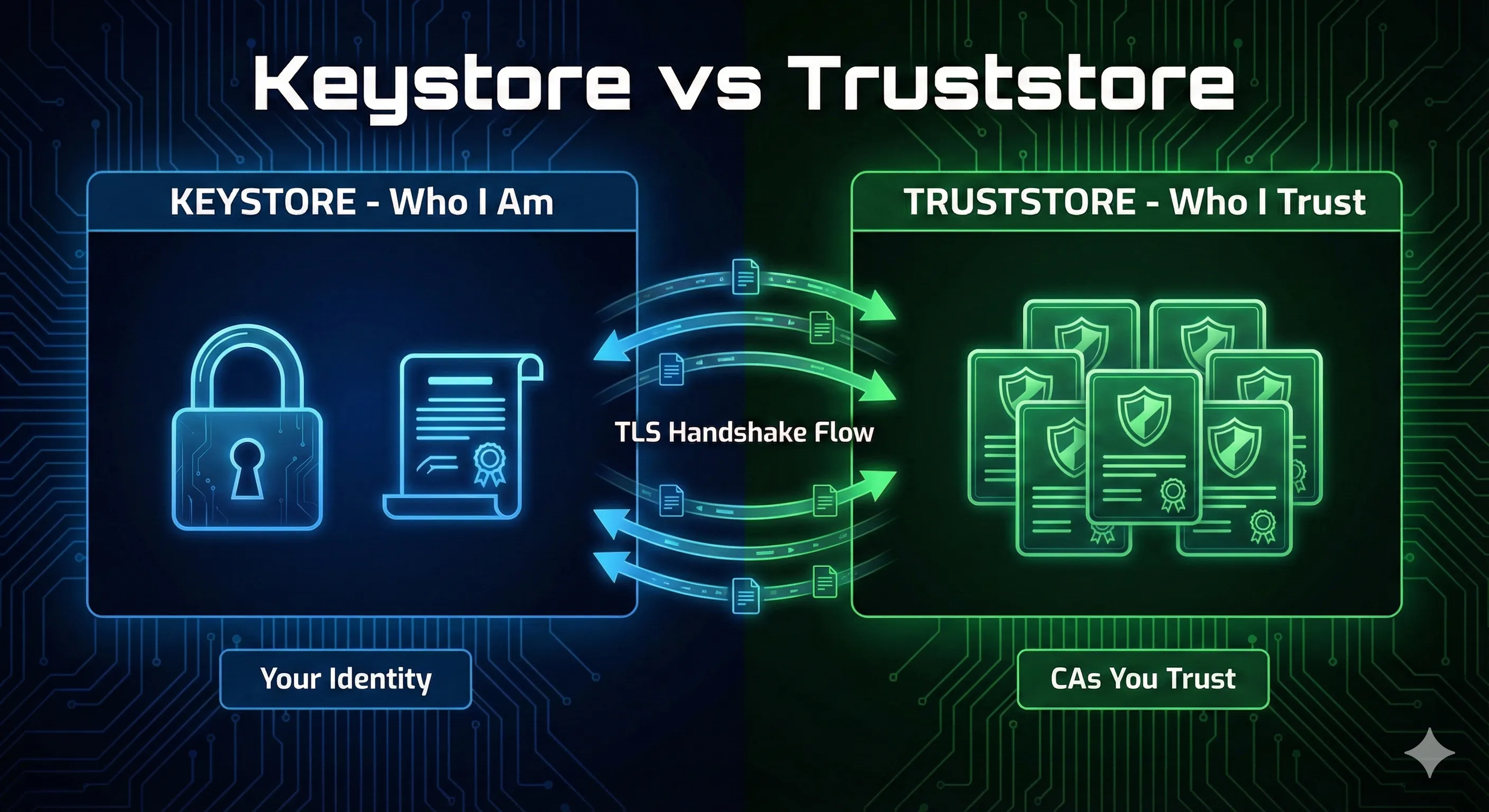
Keystore vs Truststore: What's the Difference?
KEYSTORE
Stores YOUR identity
- Contains your private key and certificate
- Used when YOUR app needs to prove its identity
javax.net.ssl.keyStore
TRUSTSTORE
Stores WHO YOU TRUST
- Contains CA certificates you trust
- Used to verify certificates from OTHER servers
javax.net.ssl.trustStore
💡 One-liner: Keystore = your passport. Truststore = countries you recognize.
What is a Java Keystore?
A keystore is a password-protected container that stores cryptographic keys and certificates. Think of it as a secure vault for your application's identity credentials.
Entry Types in a Keystore
- PrivateKeyEntry: Private key + certificate chain (your identity)
- TrustedCertificateEntry: CA certificate (when used as truststore)
- SecretKeyEntry: Symmetric encryption key (AES, etc.)
Keystore Formats Compared
| Format | Extension | Java Default | Cross-Platform | Secret Keys |
|---|---|---|---|---|
| JKS | .jks | Pre-Java 9 | ❌ Java only | ❌ |
| PKCS12 | .p12 / .pfx | Java 9+ ✓ | ✅ Universal | ✅ |
| JCEKS | .jceks | No | ❌ Java only | ✅ |
Recommendation: Since Java 9, PKCS12 is the default format. Use it for all new keystores for maximum compatibility with OpenSSL, browsers, and other platforms.
Keystore Passwords: Store vs Key
Java keystores have two password levels:
- Store password: Protects the keystore file itself
- Key password: Protects individual private keys within the store
⚠️ PKCS12 Note: In PKCS12 format, store and key passwords must be the same. JKS allows different passwords but it's common practice to use the same.
What is a Java Truststore?
A truststore is a keystore that contains only trusted CA certificates. It's used to validate certificates presented by remote servers or clients during TLS handshakes.
The Default Truststore: cacerts
Java ships with a default truststore called cacertscontaining root CA certificates from major certificate authorities.
Default location:
$JAVA_HOME/lib/security/cacerts# Find your Java cacerts location echo $JAVA_HOME/lib/security/cacerts # List certificates in cacerts keytool -list -keystore $JAVA_HOME/lib/security/cacerts -storepass changeit
⚠️ Security Note: The default cacerts password is literally changeit. Yes, really. It contains ~150 trusted root CA certificates.
When to Use Each
Use a Keystore When...
- • Running an HTTPS server (Tomcat, Spring Boot)
- • Implementing mTLS client authentication
- • Signing JARs, documents, or code
- • Making HTTPS calls with client certificates
- • Any time YOU need to prove YOUR identity
Use a Truststore When...
- • Connecting to internal servers with self-signed certs
- • Using a private/internal CA
- • Validating client certificates in mTLS
- • Overriding default CA trust decisions
- • Any time you need to trust a non-public CA
Common Errors & Fixes
PKIX path building failed
sun.security.validator.ValidatorException: PKIX path building failed: sun.security.provider.certpath.SunCertPathBuilderException: unable to find valid certification path to requested targetCause: The server's certificate isn't trusted by your truststore.
Fix: Add the server's CA certificate to your truststore:
keytool -importcert -alias myserver \
  -file server-ca.crt \
  -keystore truststore.p12 -storetype PKCS12 \
  -storepass changeit -noprompt
SSLHandshakeException: No appropriate protocol
Cause: TLS version mismatch between client and server.
Fix: Enable required TLS versions:
java -Dhttps.protocols=TLSv1.2,TLSv1.3 -jar myapp.jar
java.io.IOException: Keystore was tampered with, or password was incorrect
Cause: Wrong password or corrupted keystore file.
Fix: Verify the password is correct. For cacerts, the default is changeit.
Essential keytool Commands
Create a Keystore with Key Pair
keytool -genkeypair -alias myserver \
  -keyalg RSA -keysize 2048 \
  -keystore server.p12 -storetype PKCS12 \
  -validity 365 \
  -dname "CN=localhost,O=MyOrg,C=US" \
  -storepass changeit
Import Certificate to Truststore
keytool -importcert -alias myca \
  -file ca-certificate.pem \
  -keystore truststore.p12 -storetype PKCS12 \
  -storepass changeit -noprompt
List Keystore Contents
keytool -list -v -keystore mystore.p12 -storepass changeit
Export Certificate from Keystore
keytool -exportcert -alias myserver \
  -keystore server.p12 -storepass changeit \
  -file server.crt -rfc
Spring Boot Configuration
application.properties (HTTPS Server)
# Enable HTTPS
server.port=8443
server.ssl.enabled=true

# Keystore (your identity)
server.ssl.key-store=classpath:server.p12
server.ssl.key-store-password=changeit
server.ssl.key-store-type=PKCS12
server.ssl.key-alias=myserver

# Truststore (for mTLS client verification)
server.ssl.trust-store=classpath:truststore.p12
server.ssl.trust-store-password=changeit
server.ssl.client-auth=need  # or "want" for optional
JVM System Properties
java -Djavax.net.ssl.keyStore=client.p12 \
     -Djavax.net.ssl.keyStorePassword=changeit \
     -Djavax.net.ssl.trustStore=truststore.p12 \
     -Djavax.net.ssl.trustStorePassword=changeit \
     -jar myapp.jar
Ready to Practice?
Try our interactive demo to see keystores and truststores in action with step-by-step animations.
Launch Interactive DemoRelated Resources
JKS Fundamentals
Master Java KeyStore basics including formats, entry types, and best practices.
Keytool Command Reference
Essential keytool commands for managing both keystores and truststores.
Java SSL Troubleshooting
Fix common SSL errors including PKIX path building failed and trust issues.
CA Hierarchy & Chain of Trust
Understand how certificate authorities and trust chains work.
Certificate Chain Builder
Debug and fix certificate chain issues that cause trust validation failures.