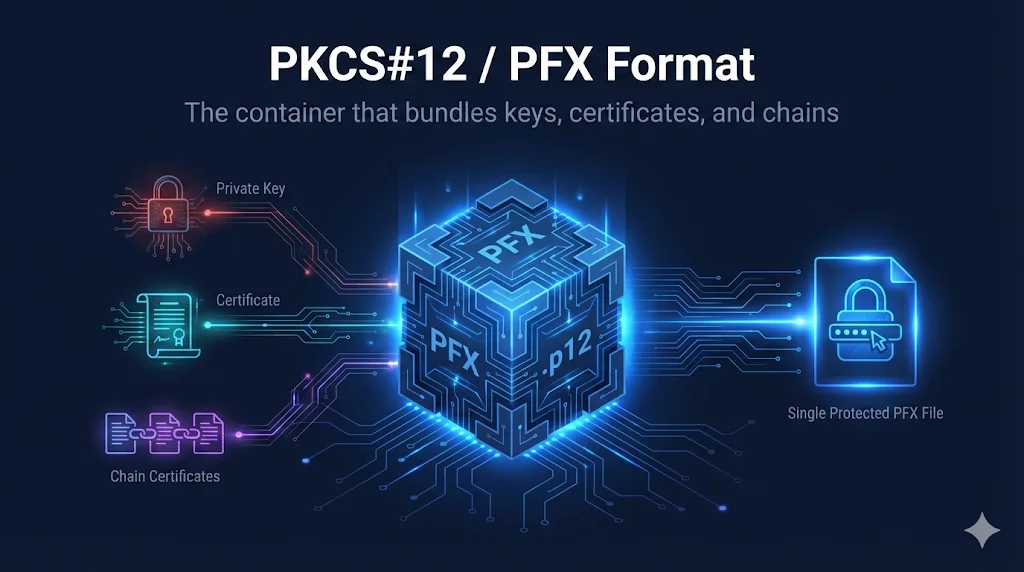
What is PKCS#12 / PFX?
PKCS#12 (Public Key Cryptography Standards #12) is a binary format for storing cryptographic objects. Files using this format typically have the extension .pfx or .p12 - these are essentially the same format.
The key advantage of PKCS#12 is that it bundles everything together in a single, password-protected file:
Your secret key used to decrypt data and sign certificates
Your public certificate containing identity and public key
Intermediate CA certificates that establish trust
Root certificate authority (usually not needed)
PFX vs P12
These are the same format with different extensions. Microsoft uses .pfx, while .p12 is more common on Unix/Linux systems. OpenSSL handles both identically.
What's Inside a PFX File?
PKCS#12 / PFX Container Structure
A PFX file is essentially a container (like a zip file) that can hold multiple cryptographic objects, all protected by a single password. The most common contents are:
- Private Key - The secret key that must be kept secure
- End-entity Certificate - Your server's or user's certificate
- Intermediate CA Certificate(s) - Certificates that chain to the root
- Root CA Certificate - Usually not included (clients have these pre-installed)
PEM vs DER vs PKCS#12
| Aspect | PEM | DER | PKCS#12/PFX |
|---|---|---|---|
| Extension | .pem, .crt, .cer, .key | .der, .cer | .pfx, .p12 |
| Encoding | Base64 (text) | Binary | Binary |
| Contains Key? | Separate file | No | Yes |
| Password? | Optional | No | Required |
| Common Use | Linux, Apache, Nginx | Java, Windows | Windows, IIS, Exchange |
Creating a PFX File
The most common way to create a PFX is using OpenSSL. You'll need your private key, certificate, and optionally the CA chain:
Basic PFX Creation
openssl pkcs12 -export -out certificate.pfx -inkey private.key -in certificate.crt
Include Chain Certificates
openssl pkcs12 -export -out certificate.pfx -inkey private.key -in certificate.crt -certfile chain.pem
Set a Friendly Name
openssl pkcs12 -export -out certificate.pfx -inkey private.key -in certificate.crt -certfile chain.pem -name "My Certificate"
Extracting Contents from PFX
Extract Certificate Only
openssl pkcs12 -in certificate.pfx -clcerts -nokeys -out cert.pem
Exports only the end-entity certificate
Extract Private Key (Encrypted)
openssl pkcs12 -in certificate.pfx -nocerts -out key.pem
You'll be prompted to set a PEM passphrase
Extract Private Key (Unencrypted)
openssl pkcs12 -in certificate.pfx -nocerts -nodes -out key.pem
-nodes means "no DES" - exports unencrypted key
Extract CA/Chain Certificates
openssl pkcs12 -in certificate.pfx -cacerts -nokeys -out chain.pem
Exports intermediate and root CA certificates
Extract Everything
openssl pkcs12 -in certificate.pfx -out all.pem -nodes
All certificates and unencrypted private key in one file
Platform Import Guides
Windows / IIS
- Open MMC (mmc.exe) and add Certificates snap-in
- Navigate to Personal → Certificates
- Right-click → All Tasks → Import
- Browse to .pfx file and enter password
- For IIS: Open IIS Manager → Server Certificates → Import
Exchange Server
Import-ExchangeCertificate -FileData ([System.IO.File]::ReadAllBytes("C:\cert.pfx")) -Password (ConvertTo-SecureString -String "password" -AsPlainText -Force)Then enable for services with Enable-ExchangeCertificate
Azure
- Key Vault: az keyvault certificate import --vault-name myvault --name mycert --file cert.pfx
- App Service: TLS/SSL settings → Private Key Certificates → Upload
- Application Gateway: Listeners → Add certificate from file
Java / Keytool
keytool -importkeystore -srckeystore cert.pfx -srcstoretype PKCS12 -destkeystore keystore.jks -deststoretype JKS
Java 9+ supports PKCS12 directly as keystore type
Common Errors & Fixes
Invalid passwordWrong password or corrupted file
Verify password with source. Try re-exporting from original system.
The PFX is protected with an empty passwordNo password was set during export
Use -password pass: in OpenSSL, or press Enter when prompted.
Cannot find private keyPFX was exported without the private key
Re-export from source with "Include private key" option checked.
The certificate chain is incompleteIntermediate CA certs not included
Re-export with -certfile chain.pem or include chain during export.
MAC verified OK (but import fails)Password is correct but PFX structure is malformed
Re-package: openssl pkcs12 -in old.pfx -out temp.pem -nodes && openssl pkcs12 -export -in temp.pem -out new.pfx
Security Best Practices
Critical Warnings
- PFX contains your private key - treat it as a secret!
- Use strong, unique passwords (not "password123")
- Never email PFX files unencrypted
- Store passwords separately from PFX files
Recommended Practices
- Use secure transfer methods (SFTP, encrypted zip, secure sharing)
- Delete PFX files after importing to the destination system
- Mark private keys as non-exportable when importing (if you won't need to move them)
- Audit who has access to PFX files and passwords
Related Resources
Certificate File Formats
Compare PEM, DER, PKCS#12, and other certificate formats.
Java KeyStore (JKS)
Learn about Java's keystore format and convert between JKS and PKCS#12.
OpenSSL Key Generation
Generate private keys to include in your PKCS#12 bundles.
Certificate Anatomy
Understand the X.509 certificates stored in PKCS#12 files.
Java Certificate Conversion
Import PKCS#12 into Java applications and keystores.
Frequently Asked Questions
What's the difference between .pfx and .p12?
Nothing - they're the same format. Microsoft tends to use .pfx while .p12 is more common on Unix/Linux. OpenSSL handles both identically.
Can I open a PFX file without the password?
No - the password is required to decrypt the contents. If you've lost it, you'll need to regenerate the certificate from the original source or request a new one from your CA.
Should I include the root CA in my PFX?
Generally no. Clients (browsers, operating systems) already have root CAs pre-installed. Including it just adds unnecessary size. Always include intermediates though.
How do I know if a PFX has a private key?
Run: openssl pkcs12 -in cert.pfx -info -noout. If it says "MAC verified OK" and shows a "PKCS7 Encrypted data" section with "shrouded keybag", the private key is included.
Try the Interactive Demo
Explore the animated PFX unboxing visualization and interactive builder.